
Randomization allows question options, discussion questions or topics to be viewed in different orders to participants. This is highly beneficial if there is the need to reduce order bias for concepts. This article discusses the situation where you need to ask multiple questions about a concept and randomize the concept order. Each concept would be set up as a topic with multiple questions.
Note: we currently do not have the option of having randomized questions within randomized topics. If you have any questions or concerns regarding this please feel free to reach out to us via help@itracks.com
Setting topics to randomized
A topic can be selected for randomization when it is first created, by clicking the Randomized check box found in the Topic Details section of the Add Topic dialog box. You are able to add questions to this topic just like usual.
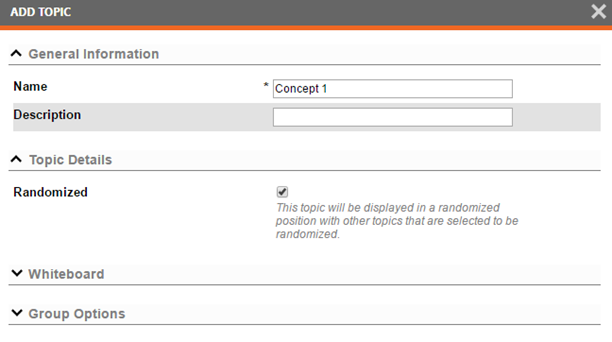
If you prefer, you can also add in the questions before making the topic randomized. To randomize a regular topic you have already created, click the Edit button  found on the right to open the Edit Topic dialog and select the Randomized checkbox from the Topic Details section shown above.
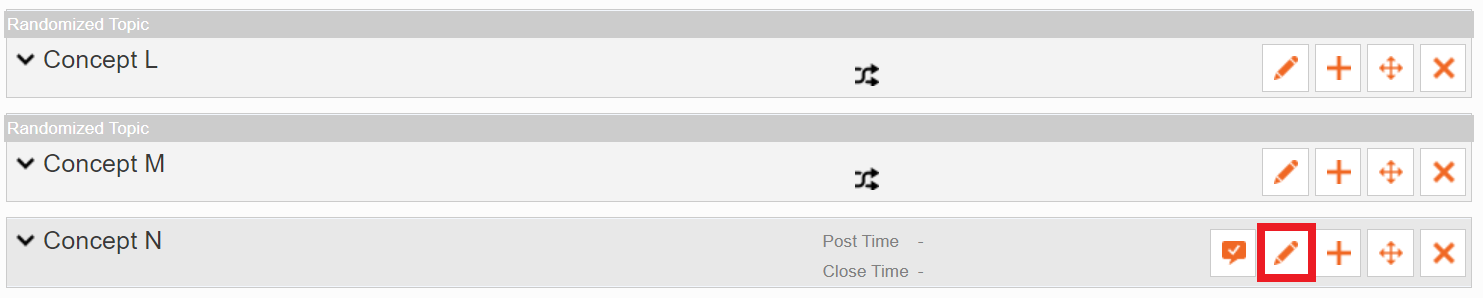
For participants to view one these Randomized topics, you must create a placeholder in your Guide.
Placeholders
When the Add Topic button or the insert plus sign is clicked after randomizing at least one topic, new options will appear allowing new topics or new placeholders to be created.
The Create New option will create a new topic. The Choose From Randomized option will allow a new placeholder to be created.
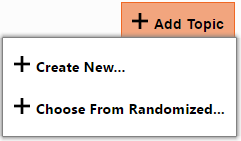
Once you have chosen to create a new Choose From Randomized topic, or placeholder, you will be able to select which randomized topics you would like to add to this placeholder as options to be shown to your participants (randomized set). Make sure to select all the topics you would like to be a part of this randomized set.
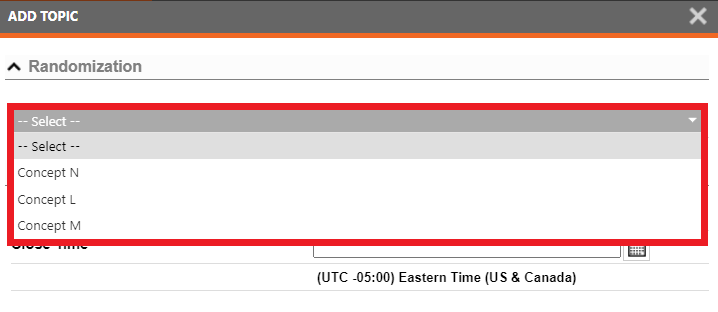
Adding topics to randomized sets (placeholders)
There may be instances where topics are created after placeholders have been created. To ensure that all topics meant to be shown in a given placeholder it may be necessary to go back and add topics to be chosen from.
In the case below, there are 3 concepts but because the Concept 3 topic was created after the placeholder Concept 1 and 2 are the only concepts in the placeholder.

You can see this more clearly when you open/edit the placeholder
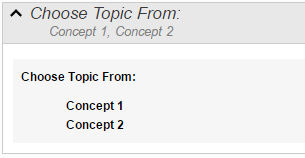
In this case, in order add another topic (Concept 3) into the randomization, click the button on the topic and choose the randomized topic you want to add as shown below.
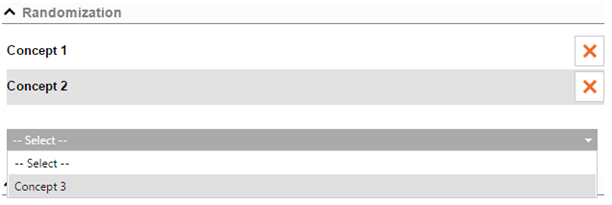
You can also delete topics that have already been selected by clicking the  button associated to that topic as needed in cases where you want to remove certain topics from a list to choose from.
In the discussion area
In the Discussion tab, you will see all the topics/questions you have set up and all the topic placeholders on the left hand side of the screen in the questions navigation area.
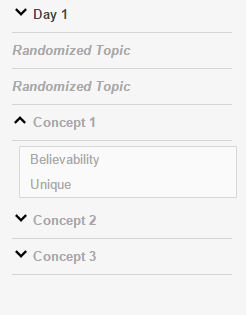
In the case above, the topics are Concept 1, 2 and 3. Concept 1 is expanded so you can see the questions in that topic. Participants will see these topics in random order based on topic where it says Randomized Topic. You will see the responses to the questions in the question itself. The Randomized Topic, when clicked on, will show you which topics are being pulled from to fill these topic placeholders for the participants.
Comments
0 comments
Please sign in to leave a comment.