
Below are some common details on how to interact with your interview or focus group once you have the mobile app downloaded. Included below are details on how to join an activity, flip your camera and rejoin the activity in the case where video or audio is not working well.
Quick Links for this Article
Viewing Upcoming Activities
Joining the call
Flipping the camera from front to back and vice versa
Rejoining the Call
Ending your call
Viewing Upcoming Activities
Once you have downloaded and logged into the itracks Realtime Mobile app, you will see the upcoming activities assigned to you and details related to the activity.
When the interview is available for you to access (15 minutes before your session), a Join button will appear on that activity. Click the Join button to enter the activity. When first in the activity you will start in the Waiting Room.
Joining the call
Once the host/moderator lets you into the interview from the waiting room, the Join Activity interface will begin. Upon your first time using the application, you will have to allow permission to access your devices by making sure the toggles are switched on, as shown below. If these are not allowed, you will be unable to join the call.
iOS
Android
At this point, click the Join button to connect to the audio and video from your phone to the meeting. Please make sure you are not on a phone call or that your camera/microphone is being accessed by any other apps on your device when you join.
Flipping the camera from front to back and vice versa
If you need to flip the camera from the front view to the back view or vice versa, please touch the downward arrow on the screen to expand the menu, and then click on the and you should see the option "Switch the camera".
Phone:
iPad/Tablet
Rejoining the Call
If you experience any issues in seeing or hearing the moderator or the moderator indicates they are not able to see or hear you. Clicking the rejoin button that appears at the bottom of your screen will refresh the app and get you to reconnect your camera and microphone.
Ending the Call
When your session is over, click the red phone button 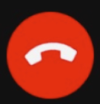 to hang up the call.
itracks Help Desk
If you need assistance at any time, our Support Team can be contacted at:
- North America Toll Free: 1-888-525-5026 ;
- International : +1 306 665 5026 ;
- Chat with us on the bottom right of this screen ;
- Email: help@itracks.com
- Or, submit a ticket directly to our help desk at: https://itracks.zendesk.com/hc/en-us/requests/new
Comments
0 comments
Please sign in to leave a comment.