
If a participant is experiencing a poor connection, he/she might be able to improve the quality of the audio and sometimes eliminate the lag in the video by using the Turn off Incoming Video feature. This turns off incoming video feed for that particular participant from other people in the focus group (except for the moderator) thereby saving that participant's bandwidth and allowing more bandwidth to be used to keep their own video and audio running a bit more seamlessly.
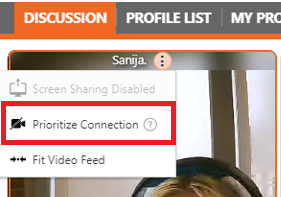
The Moderator and Tech Support can turn off/on the incoming videos for a participant going to the participant video tile, clicking on the three dots and selecting the option "Prioritize Connection" for that particular participant.
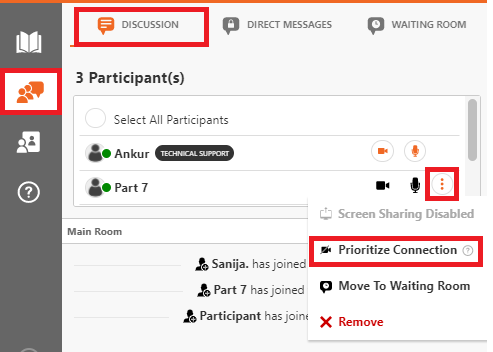
This option "Prioritize Connection" for a participant can also be accessed by the Moderator or by Tech Support from under Attendees > Discussion and by selecting the three dots corresponding to the participant name.
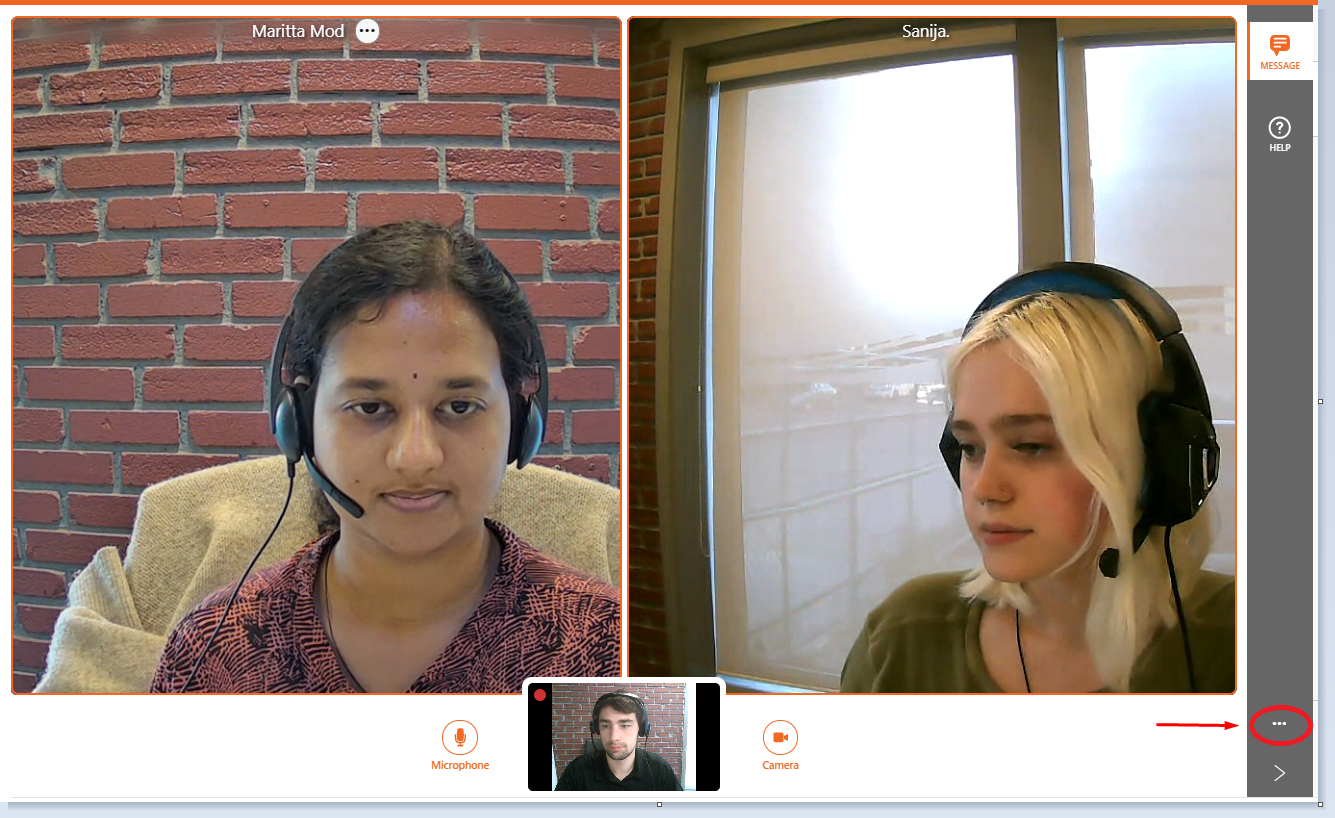
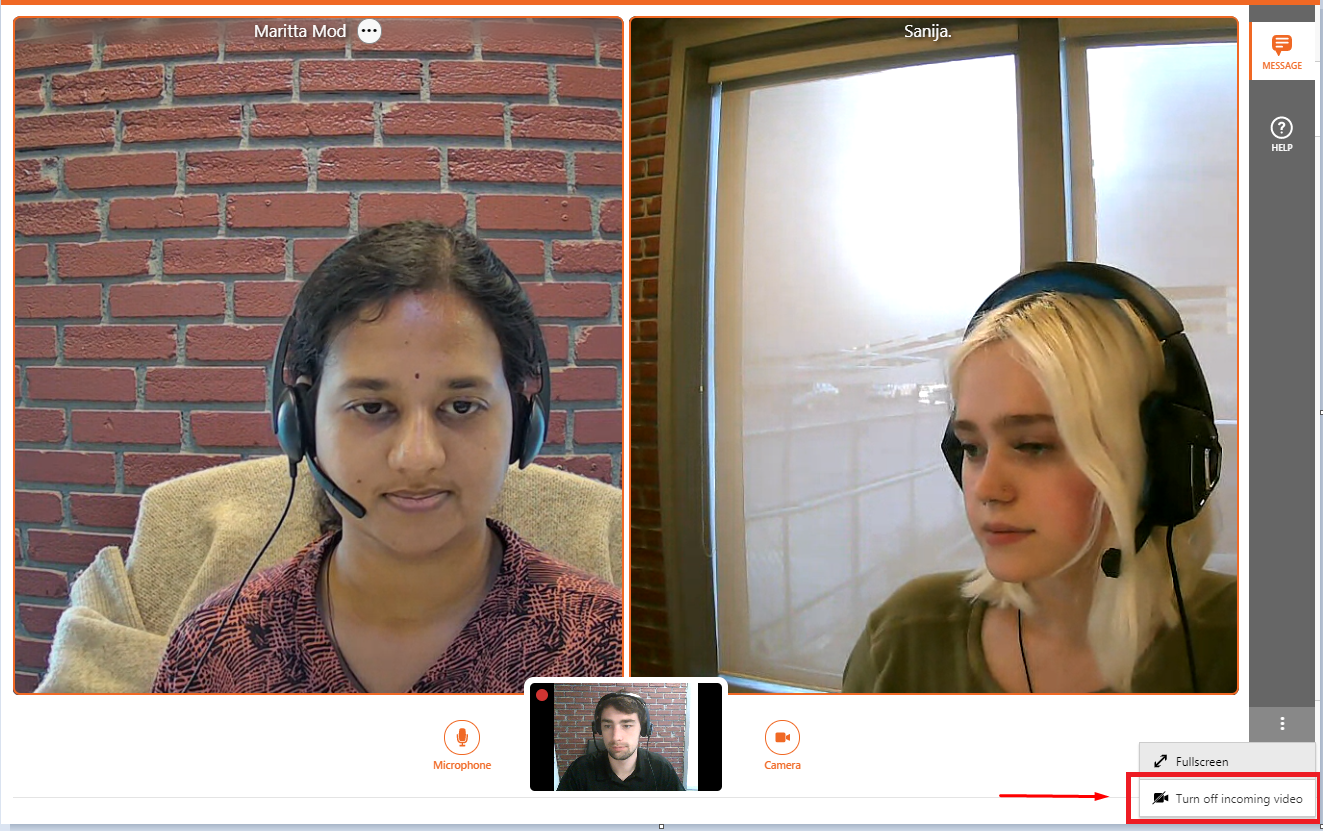
Participants themselves can also turn off/on incoming videos locally. This can be done by clicking on the three horizontal dots on the vertical menu bar and then selecting the option Turn off incoming video.
- Host feed will remain visible at all times
- Feed belonging to the user sharing their screen will become visible, then return to its off state when screen sharing ends.
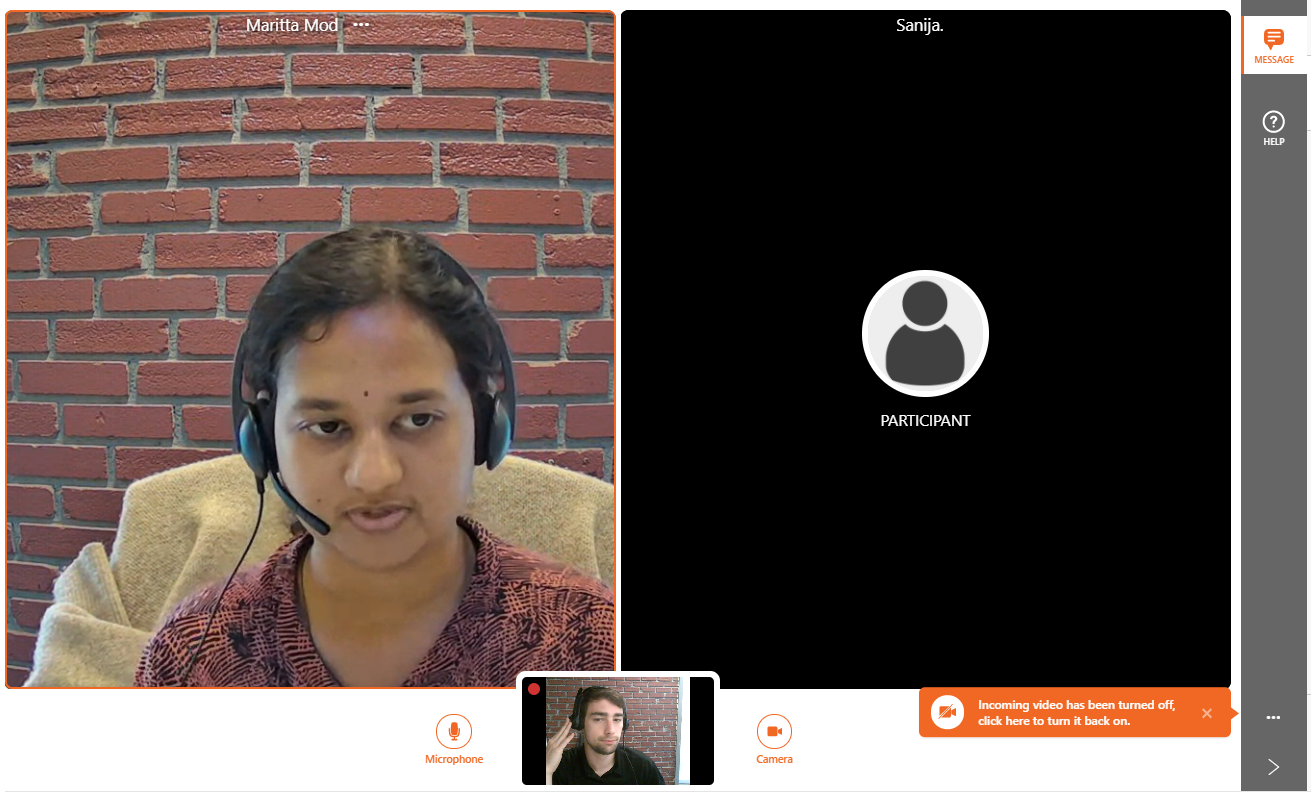
The participant can also turn the incoming video feeds back on by clicking on Turn on incoming video which would now appear after clicking on the three dots on the vertical menu bar.
Comments
0 comments
Please sign in to leave a comment.