
A new project creation mode has recently been introduced for select accounts within the itracks software. This updated mode aims to enhance the user experience by streamlining the project setup process and providing additional features. Below, you will find detailed instructions on how to navigate and utilize this new project creation mode effectively.
If your account is still using the previous version of the project setup and you are interested in switching to this new and improved version, you can request the upgrade by contacting the support team. Simply send an email to help@itracks.com, and they will assist you in enabling the new project creation mode on your account.
Quick links for this article
Step 1 - Click the Create Button
Step 2 - Fill In The Project Set Up Page
Step 3 - Choose the product you want to use for your research
Step 4: Add Additional Team Members
Step 1 - Click the Create Button
The Create buttonis found at the top of your list of projects in your account and is available on the home page.
Step 2 - Fill In The Project Set Up Page
The following are required fields on this page:
Account List: This drop-down only appears if you have access to multiple accounts. Use the drop-down to choose which account you are setting up the project in. If you only have access to one account, only one account will appear here.
What is the name of your project?: This is where you enter the name of your project. This name is not seen by participants. The participant's name can be added or adjusted in project settings.
Project start date: This will default to today and be the first time you can access the project.
Where would you like your data hosted?: Use the drop-down to determine the storage location of your data. This setting cannot be adjusted after the project is created.
When would you like your project to end?: Use the calendar button here to adjust the end date of your project.
Click the Next button to proceed to the next step of the setup process.
Step 3 - Choose the product you want to use for your research
This stage of the setup will let you choose the product you want to use for your research. If you are not a current subscription holder, you will be shown the subscription options available. If you currently have active subscriptions on your account, you will see when your subscriptions are active until.
To get more product details, click the Explore Features button.
Click the Choose button to choose the product and, as applicable, the subscription type needed for that product.
Once you have made your selection, click the Next button to proceed to the next step of the setup.
Step 4: Add Additional Team Members
This step is optional. If you prefer, you can still add your team members after projects are set up using the Users tab in both Board and Realtime projects.
If you do want to add your team members at this time:
Click the Add a team member button
Enter your team member's information
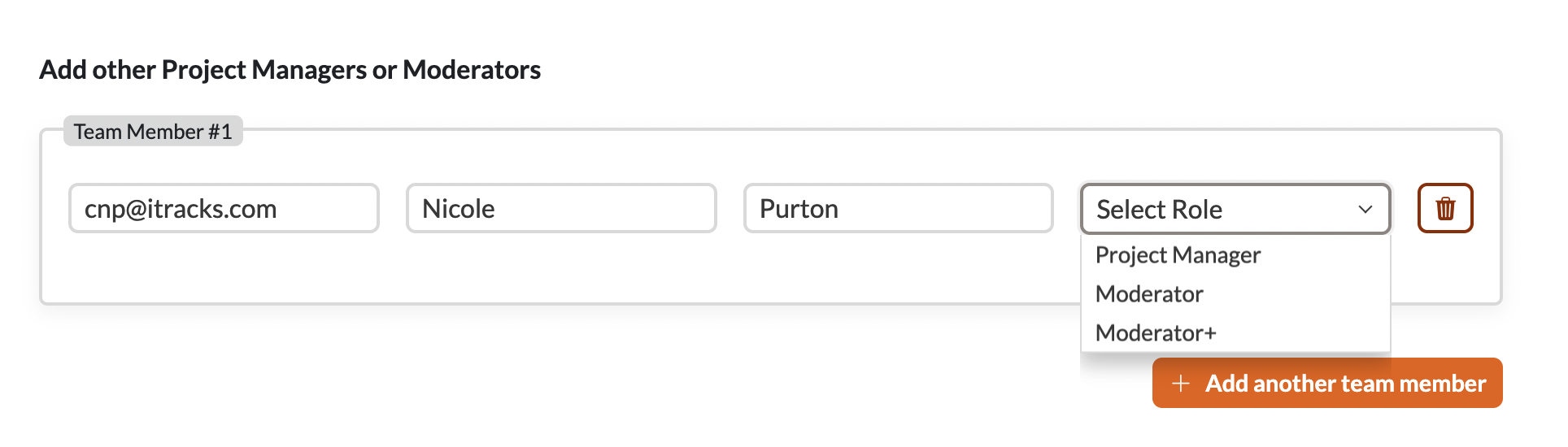
Email address - enter the email address of your colleague/team member
First Name and Last Name - type in your team member's first and last name
Select Role - Choose the role the team member will need to have in the study from the drop-down box. For a comparison of roles, please check here: User Roles
If you are adding a recruiter, you will have the opportunity to do so later in the setup process.
To add another team member, click the Add another team member button and enter their details
Use the delete button to delete a team member during the setup process.
If you are not adding additional team members, or if you are done adding team members, click the Next button to proceed to the next step of the setup.
Step 5: Add Participants
On this page, you will share how people participating in the research will be added to the study.
Add My Own
Click the Choose button on this option if you are planning on adding your own users to the study once the project is created.
Add Recruiter
Click the Choose button on this option if you have a dedicated recruitment partner for the project (either internal or external). This will allow you to enter the recruiter's email and set them up with the recruiter role in your project. If you need details on what the recruiter role entails, please check here: User RolesClicking the Choose button on the Add Recruiter option brings up the Add a recruiter button which gives you areas to enter the email, first name and last name of the recruiter.
Request a Quote
Clicking the Choose button on the Request a Quote option prompts you to click a link to reach out to itracks and request a quote to assist with recruiting participants.
Filling in the form that appears when clicking the Click here to request a quote link will send an email to our sales team with your project details. You should expect a quote back within 1 business day.
Once an option is chosen, click the Next button to proceed to the next stage of the setup proccess.
Step 6: Add Observers
This step is optional. If you prefer, you can still add your observers after projects are set up using the Users tab in both Board and Realtime projects.
If you do want to add your team members at this time:
Click the Add an observer button
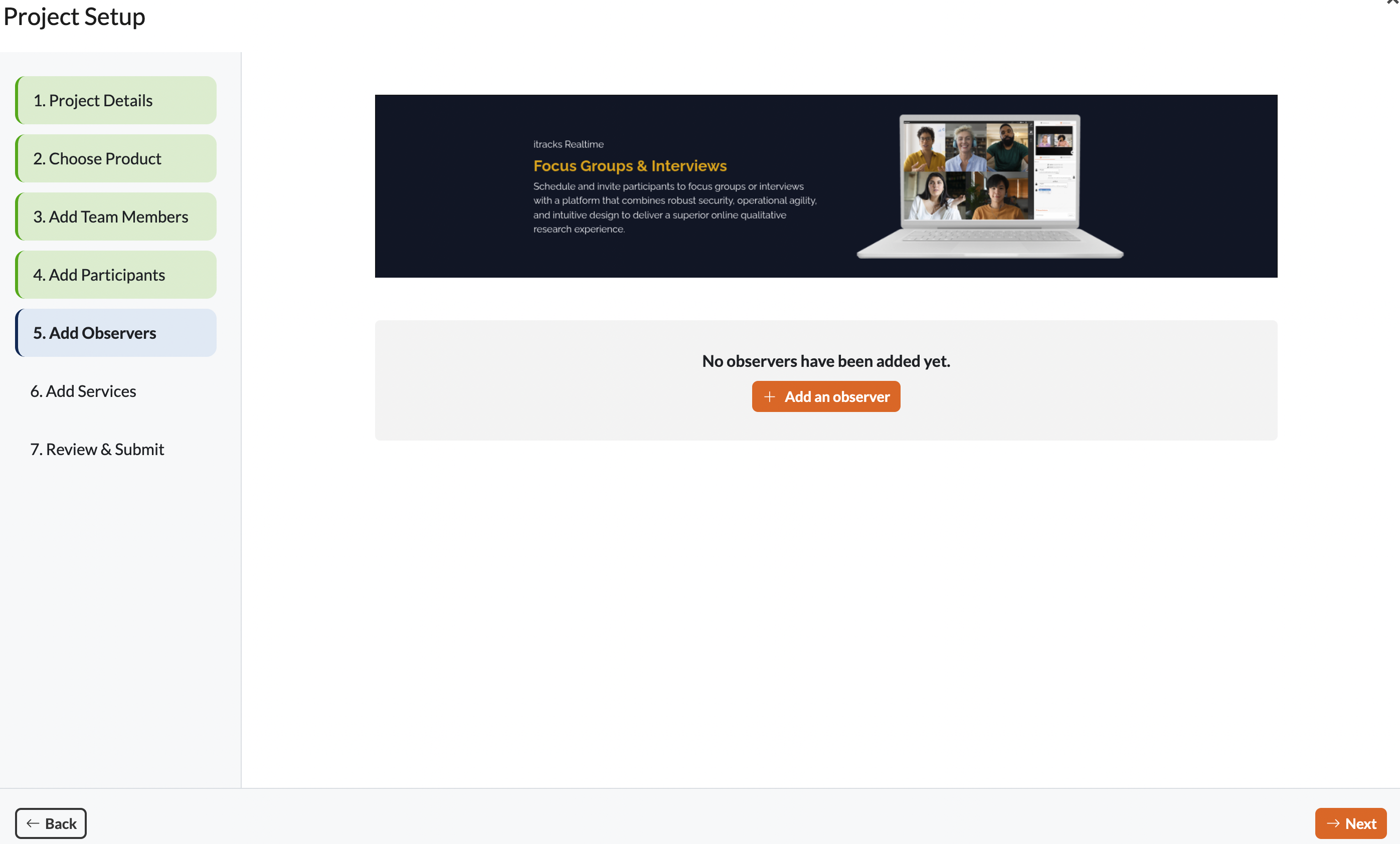
Enter your observers' information
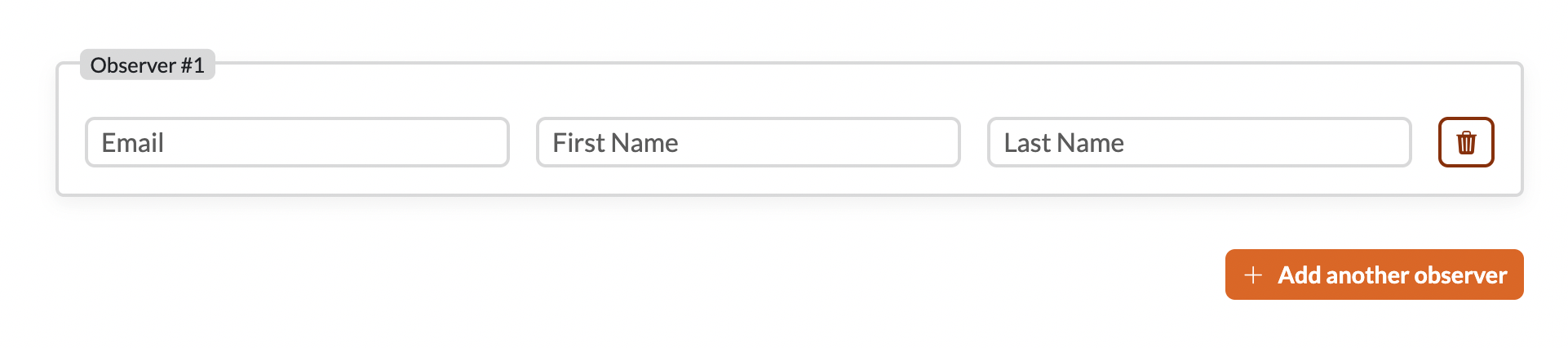
Email address - enter the email address of your observer
First Name and Last Name - type in your team member's first and last name
To add another observer, click the Add another observer button and enter their details
Use the delete button to delete an observer during the setup process.
If you are not adding observers at this time, or if you are done adding observers, click the Next button to proceed to the next step of the setup.
Step 7: Add Services
This page lets you add services such as concierge support (for Realtime projects only), product training, and support packages.
Concierge Services
This service upgrade is only available for Realtime product usage. Not available for the Board product.
Free live support via the itracks help desk - no additional costs. All support for your project is done via our help desk.
Welcome service for $75 USD per activity- includes 30 minutes of concierge support for your session. A member of the itracks concierge team will join your session, welcome and test your participants, making sure your session starts as expected. The concierge team member is not required to stay for the entire session and will drop off 15 minutes after the session starts.
Upgrade to concierge service for $150 USD per hour - the concierge team member will join your session, welcome and test your participants and stay the entire session. This is an hourly cost charged out at 30-minute increments based on the time spent in your session.
For an outline of concierge services and when we recommend you use them or not, please refer to this article - itracks Concierge Details
To upgrade the services for your project overall, click the option you want for this particular study.
Product Training
Clicking the unlock button here will let us know that you would like a product training for an additional $199.
This training will include 1 - 1 hour of training for you and your team.
Project Management Support Package
The project management support package includes up to 10 hours of services and includes for $1,499:
- User importing/setting
- Activity creation
- Email Invites and Reminders
- Guide and Media set up
- Project Management
Once your selections are made, click the Next button to proceed to the final step of the setup process.
Step 8: Review & Submit
The final page lets you review your selections. All sections have an Edit button that will take you back to that step in the process to make adjustments.
To complete the project setup, click the Create Project button.
You will then be taken to the project where you can add activities or load users.
How to Add Realtime Activities
How to Add Board Activities
Adding Users (Participants, Observers, Moderators and Recruiters) Into Realtime Focus Group and Interview Activities
Adding and Importing Users (Participants, Observers and Moderators) Into Board Activities
Comments
0 comments
Please sign in to leave a comment.