
This article outlines how to set up a new project in the Project Management tool, including how to name and link your recruitment project to an itracks account. This project creation lets you create a project in the itracks Qualitative Research Software right from the Project Management software tools where you can pre-qualify your participants before they are invited to the research.
Quick Links
Login
Log in to the tool using the link provided with your GO account access.
New Project Button
In the upper right corner of the screen, click the New Project button.
Project Details
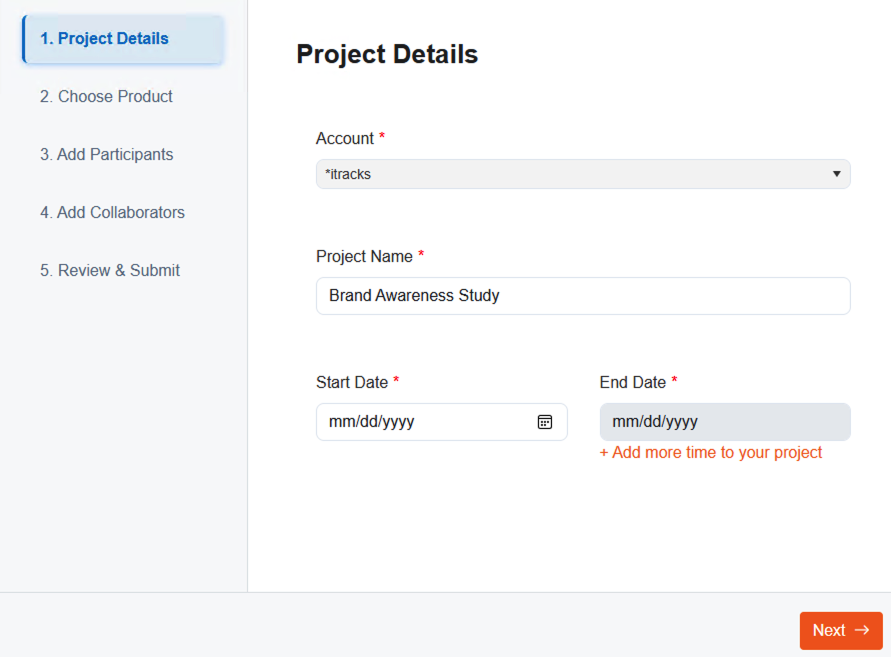
Select Account
Choose your account from the drop-down. If you only have access to one account, this option may not appear. You will only see accounts which you already have access to.
Enter a Project Name
This is the project name that shows in the itracks Qualitative software. Participants do not see this project name, but it should be something recognizable to you and your team.
Enter the Start/End Date

Click the calendar icon to bring up the calendar selection. Choose a start and end date.
Click the Next button to move to the next page.
Choose Product
Choose the type of activity you will be using for your project.
Click the Next button to continue.
Add Participants
Select the option that best suits your project:
-
My Own - you are loading and getting video validation from recruits on your own
- Clicking this option will bring up an area where participants can be added manually. This is optional. In most cases, you can just proceed to the next page.
- Clicking this option will bring up an area where participants can be added manually. This is optional. In most cases, you can just proceed to the next page.
-
Add Recruiter - lets you add a recruitment partner to load and manage users
-
Choosing this option lets you input Recruiter information so they are added to the project and sent login details.
-
- Request Quote - will send a quote to our recruit partners to assist with project recruitment
Click the Next button to continue to the next screen.
Add team collaborators
Here you can add moderators and project managers. This step is optional and can be done now or later in the itracks Qualitative tool after the project is created. To skip this step click the x button in order to proceed to the next page.
Review and submit
Review your project details.
Click the Create Project button to save your project
Comments
0 comments
Please sign in to leave a comment.