
As an observer of a text-based focus group for a research study, below are instructions about how to sign in for the study, how to navigate the platform, and what you can expect to see when you join the text-based chat group.
Quick Links
Backroom Chat/Interacting in the Session
Email Invite Details
Before the start time of your session, you will receive an email from hello@itracks.com with information on how to sign into itracks and join the research study.
Registration and Login Page
If a Registration and Login Page link is in your invitation, you will be asked to create a password and confirm your information the first time you log in.
Your password can be anything that you would like it to be as long as it meets the system complexity requirements. This will be the password that you can use to log into the project and attend sessions.
Passwords must be at least 8 characters long.
Passwords must contain multiple character types. Try:
- Adding both upper and lowercase letters.
- Adding numbers.
-
Adding punctuation.
Enter your Password and Confirm Password in the fields as shown below. The passwords need to match. When done, click Continue.
Once you register, each time you return to the registration and login link in your email, you will come to the login page where you can enter your email address and log in by one-time passcode or password.
Click here for instructions on how to sign in with Google.
Home tab
The first time you log in, you will start on the Home Tab.
On the right hand side of the page, projects and activities you have access to will be listed. Active and upcoming projects and activities will appear at the top of the list with any live activities that you can join now having a JOIN NOW button that you can click to go right into any open sessions.
The dashboard is organized in rows by item and columns by Name, Status, and Type. Each row also includes the Support ID. Depending on user type this dashboard may include Alerts or navigation and management shortcuts.
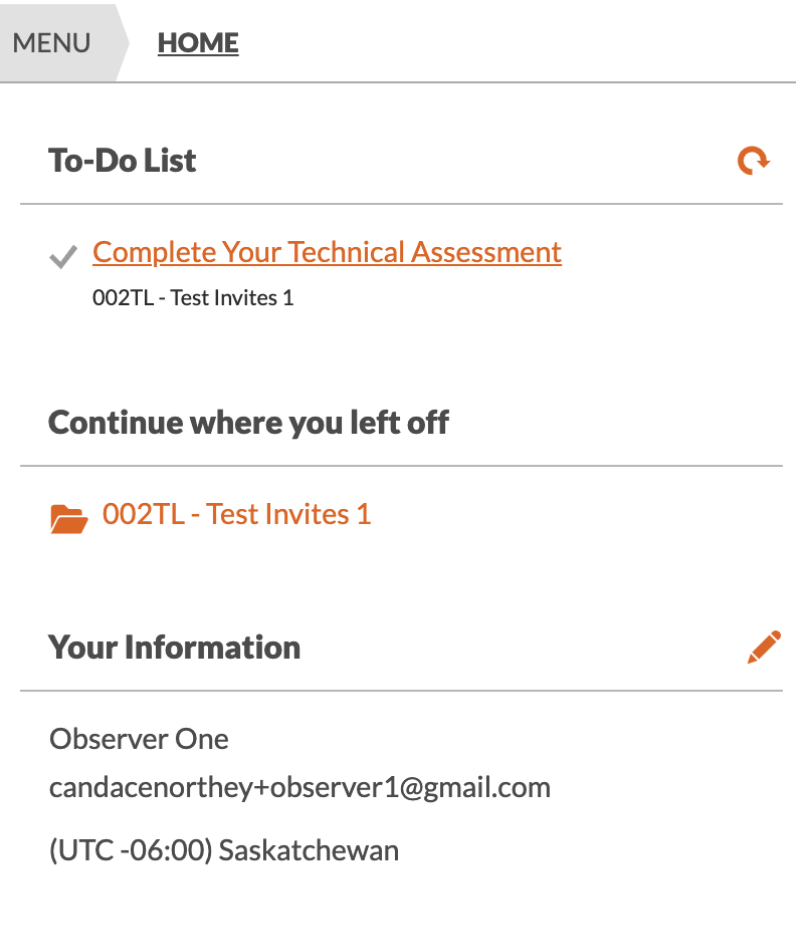
On the left-hand side of the screen will be a To Do list, an area to Continue where you left off since you last logged in and an area to update your account information.
Adding Activities to Your Calendar
Once you have entered a project, either by choosing to view a project from the Home tab or entering a project using a continue where you left off link, you will get an activity schedule. Here you can see what is upcoming and add any scheduled activities to your email calendar.
Here you can click the Add to Calendar button on any upcoming activity to add a reminder to your Outlook or Gmail calendar.
To get into a particular activity click on the row of the activity you are meant to watch at the time that you have logged in. If an activity is currently available there will be a Join Now button on it. All Realtime Text activities open up 30 minutes before the scheduled start time.
The Observer Interface
When you click the Join Now button to join an active activity, a new tab called Discussion will open in your browser. The interface you see as an observer will look something like below:
The left-hand side is the Main Room where the bulk of the chat discussion will take place. Once the moderator is ready to go, they will bring the participants they want to conduct this session with into this main room and begin asking questions from their discussion guide. The participant’s responses to these questions will appear here as well as any media that the moderator chooses to display.
The right-hand side of the screen is by default open but can be collapse by clicking the > button. This area is navigable and includes attendee, backroom chat areas as well as an area to contact tech support.
Attendees
The attendee's area is split into three parts: Discussion, Direct Messages, and Waiting Room.
Discussion
The discussion area will show a list of all participants in the session.
Direct Messages
When you click on this heading, all direct messages between the moderator and participant will appear (please note: this area only appears if it is enabled by the moderator)
Waiting Room
Before participants come into the main discussion they land in a waiting room where the moderator approves them. Please note that in some cases, the moderator will apply settings so observers do not see this area. If you see the waiting room all participants in the waiting room will appear here. You will also, be able to see the waiting room chat area here.
Backroom Chat/Interacting in the Session
The Backroom is where you can talk with other observers and direct message the moderator. Here you will see an observer list that includes you and any other observers that are online. Below that is the Backroom Chat and Direct Messages area. Type into the backroom chat to talk to all observers and moderators in the session with you.
Click the Message Moderators button to direct message the moderator. This will automatically take you to the Direct Messages area where you can send a private note to the moderators.
As an observer, you will only be able to type into the Backroom chat or direct message the moderator.
Participants can never see what you are typing.
Technical Support
Tech support is available by clicking the in the navigation bar where you can toggle between the backroom and other areas. If tech support is part of the services paid for, the dedicated tech support will be available to direct message here. Otherwise, this will display the help desk information and a live support chat bubble
to chat with tech support directly.
Tech support can be called at 1-888-525-5026 ext. 1 or emailed at help@itracks.com
Comments
0 comments
Please sign in to leave a comment.